 PictoTag - Tag photos with ease. Highlight by drawing shapes on your images.
Launch App
PictoTag - Tag photos with ease. Highlight by drawing shapes on your images.
Launch App
PictoTag - Tag photos with ease. Highlight by drawing shapes on your images.
Launch App
PictoTag - Tag photos with ease. Highlight by drawing shapes on your images.
Launch App
A quick guide to creating and reopening SVG annotations.
Drag and drop any image (JPG, PNG) into the upload zone. PictoTag automatically optimizes it for the canvas.
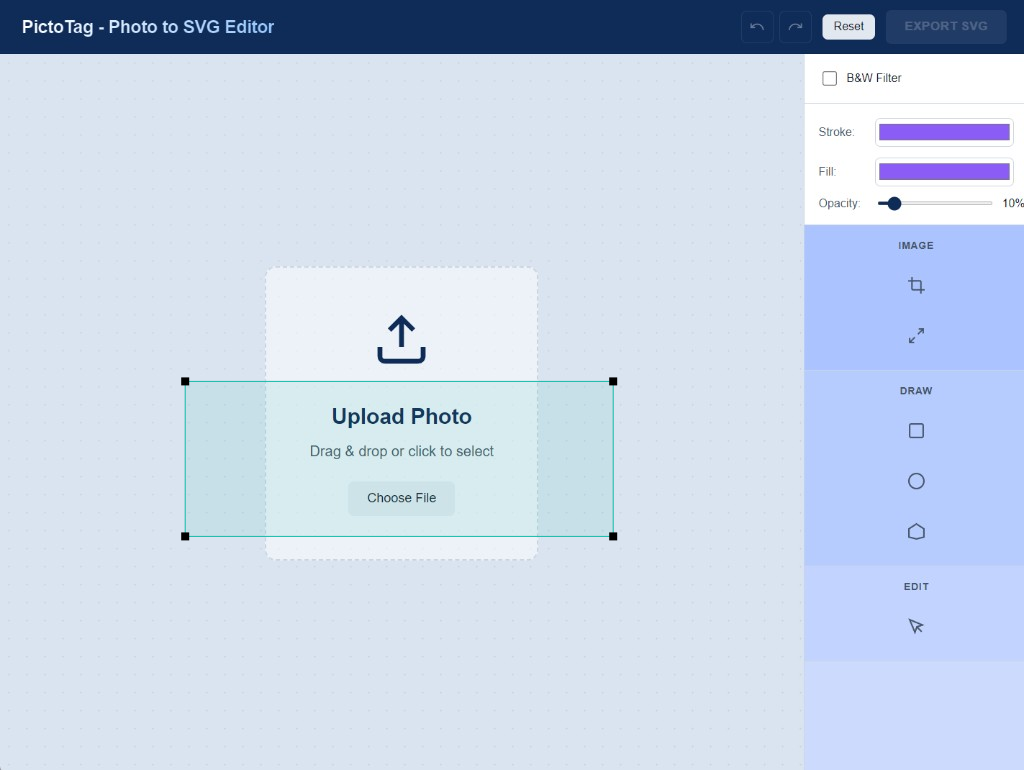
Use the toolbar to add rectangles, circles, or polygons. Customize stroke color, fill, and opacity to highlight key areas.
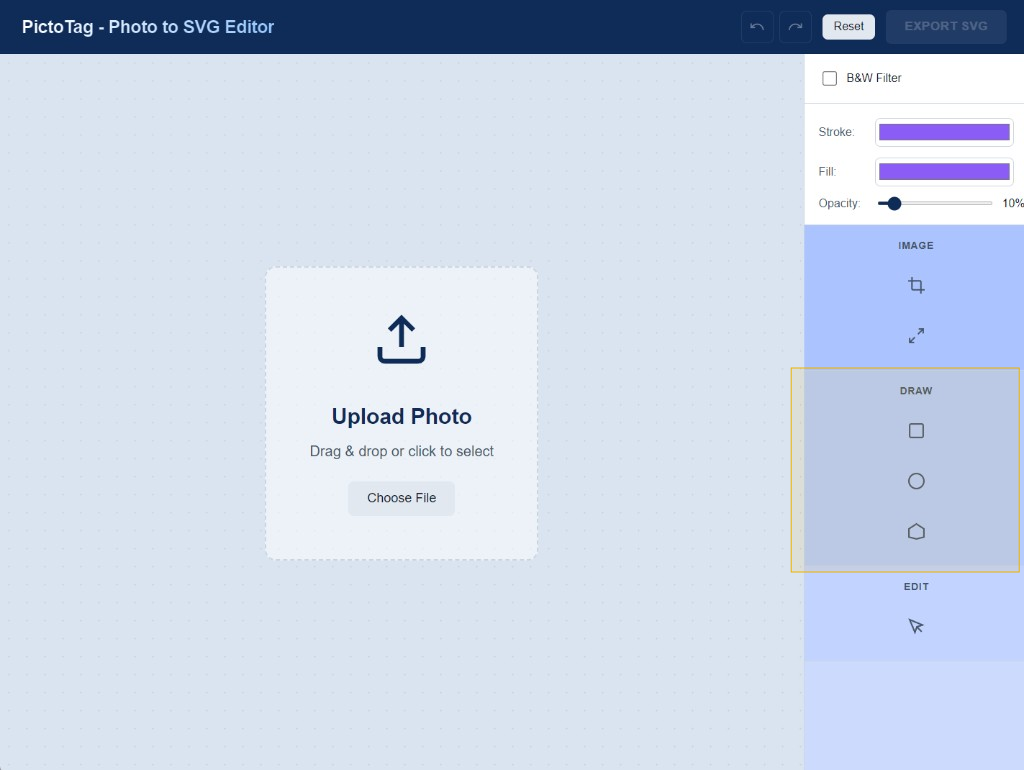
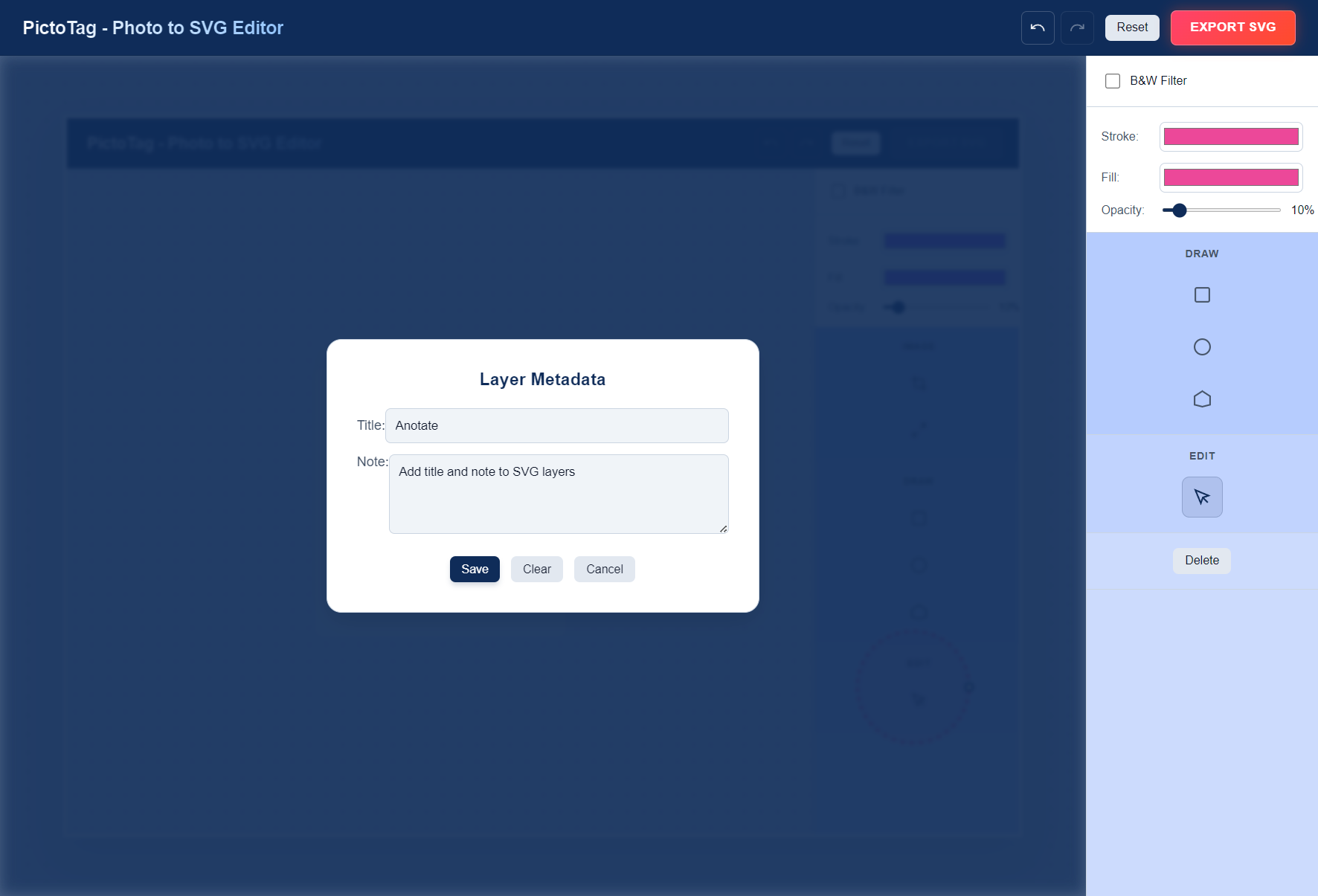
Add title and note to SVG layers
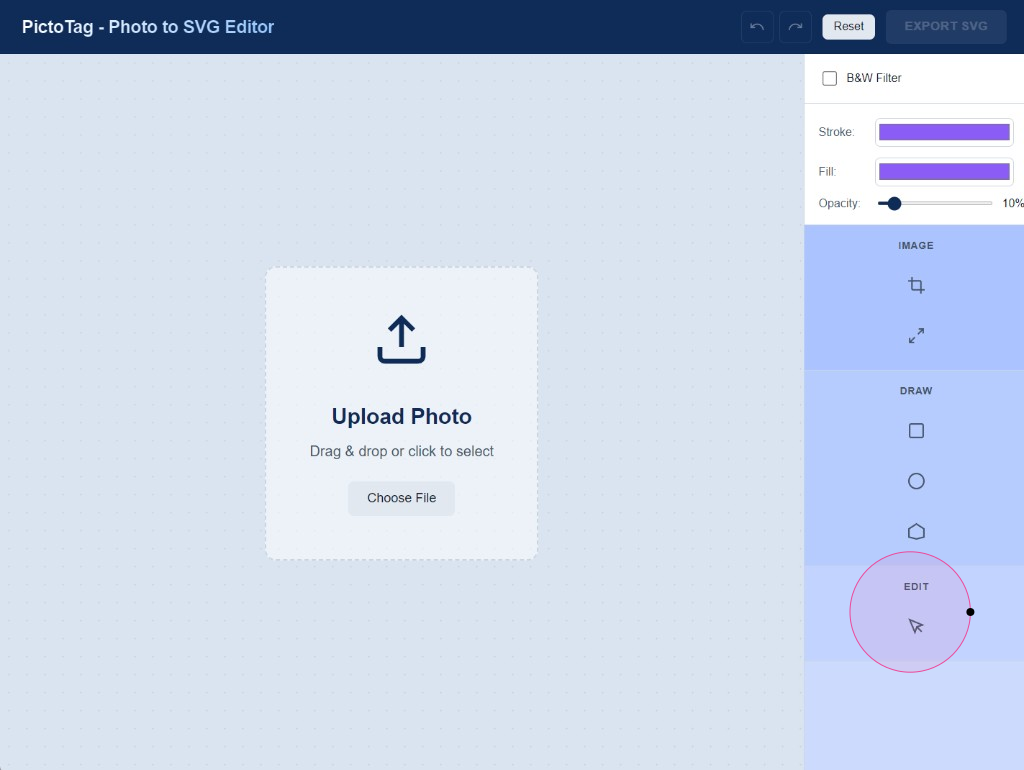
Add title and note to SVG layers in modal window
DO NOT forget to click "Save" to save your changes
You can also delete annotations by clicking the Clear button.
Or cancel/restore annotation edits by clicking the Cancel button.
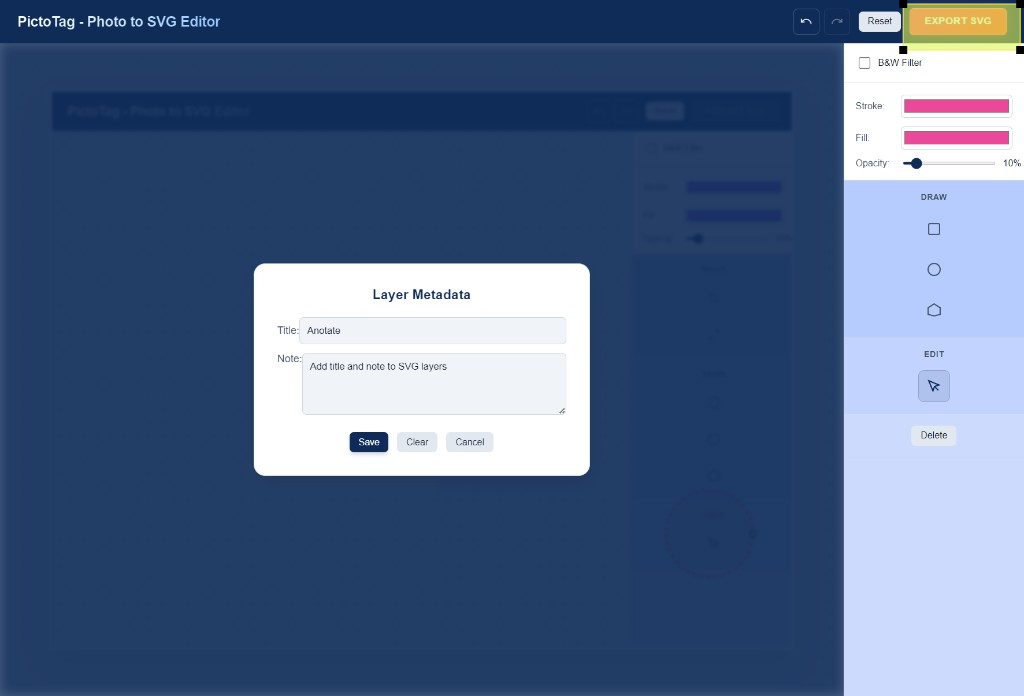
Once you're done, click Export (big red button in top right corner).
(Optional/Paid option) You can choose to keep or remove hidden layers, giving you a clean, scalable SVG file.
Drag & drop a previously exported PictoTag SVG (or use the file picker). The app detects the PictoTag stamp and restores your base image, layers, and metadata.
After import, the metadata viewer (top-right) lists every layer’s title and note. Click a list item or any shape with the Select tool to open the metadata modal and edit it.
Friendly toasts now confirm imports or show errors instead of alerts, so you always know what happened.